The forum on this site is closed for new comments and posts. Continue the conversation in our Snap AR Discord server.

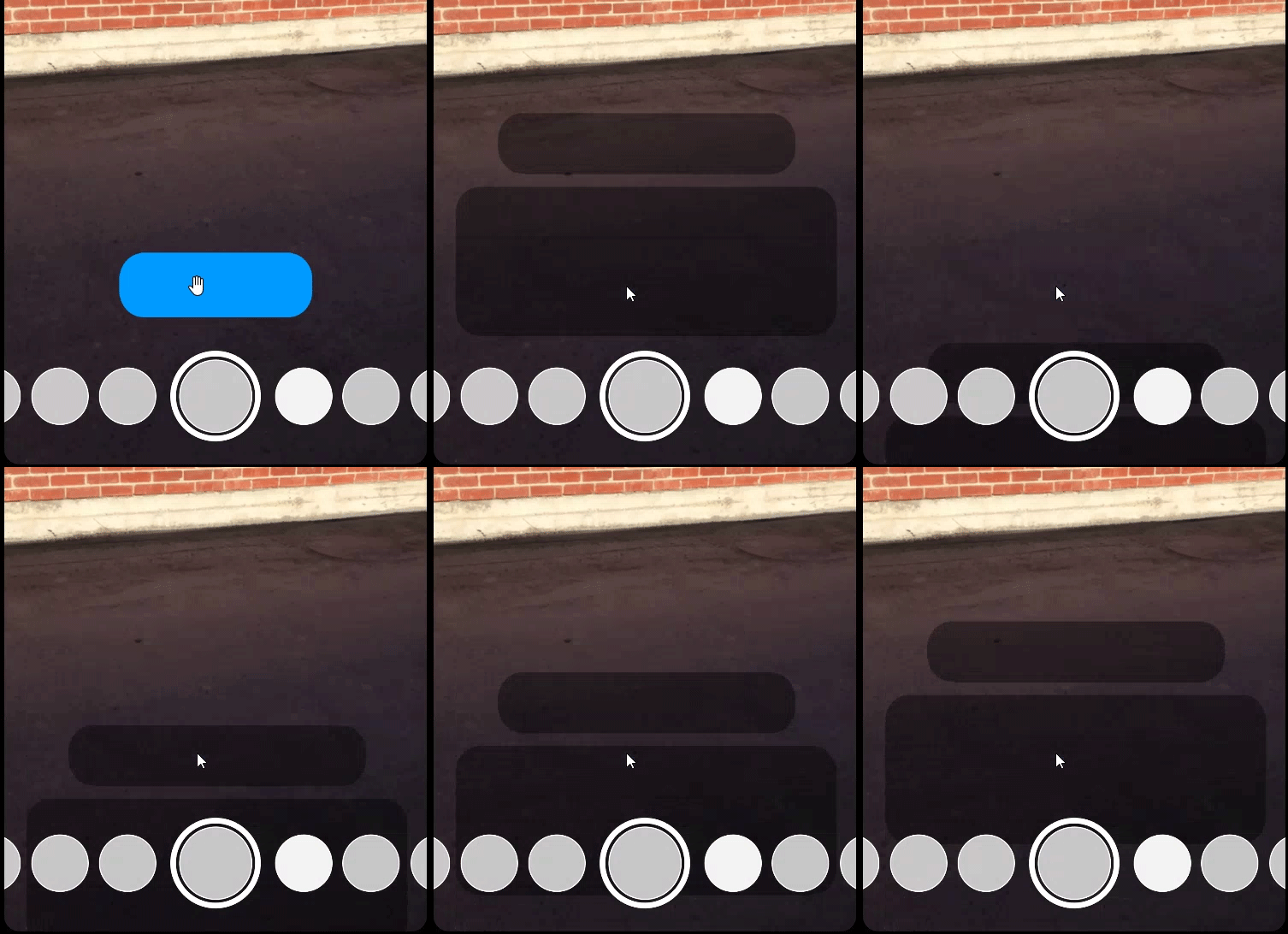
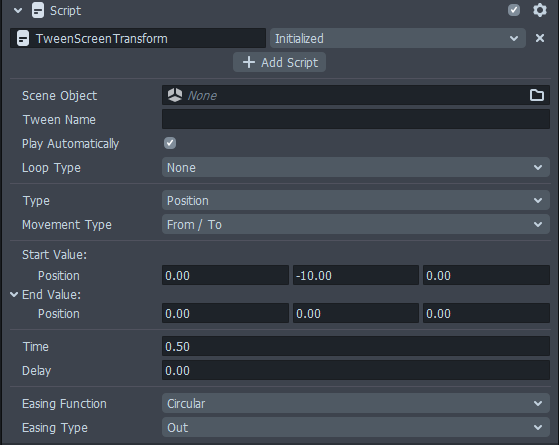
Tween start frame incorrect

  • Looks like a glitch but my guess is that it's already enabled so it shows on the screen then the transformation starts so basically uncheck it from the scene so it's not visible and then when you click the button it activates without showing where is at currently.


    I'm not really good at explaining it, but it's just a guess. Can I have a screenshot of the full project?

    Comment actions Permalink
  • Hi PWA!


    In order for your tween to run after an object has been enabled, the safest way is to use a script to call the tween after enabling the object. Initialize technically isn't called right after object gets turned on so that might be an issue.


    Technically it should work with a custom script where you'd enable the object and then call its tween to run it, but right now we have a bug where calling tween immediately after enabling object would not work, so you'd have to give it a small delay (usually 0.1 second would work)


    So here's an example script on how to get that to work:

    // -----JS CODE-----

    //@input SceneObject tweenedObject

    //@input string tweenName


    function startTween(){

    script.tweenedObject.enabled = true;

    delayedEvent.reset(0.1);

    }


    var delayedEvent = script.createEvent("DelayedCallbackEvent");

    delayedEvent.bind(function(){

    global.tweenManager.startTween( script.tweenedObject, script.tweenName);

    })


    script.createEvent("TapEvent").bind(startTween);


    In this script it is set to run when you tap screen, but feel free to replace event with anything else, or call the function anywhere else.


    And in the inspector, put in your tween Object and input your tween name. Then make sure your tween is not set to PlayAutomatically and has the same TweenName as the one in the script.


    We're aware of this issue and hopefully we'll have an easier time enabling/tweening at the same time in future updates of Lens Studio. In the mean time we kinda have to work around it (:3)


    Hope this could be of help!

    Comment actions Permalink

We're here to help! We just need a little bit of information...

What system are you using?

Have you downloaded the latest version of Lens Studio?

Please download the latest version of Lens Studio. If you still run into this issue, please come back and report it!

Is this issue causing Lens Studio to crash?

What system do you run Lens Studio on?

Version

Graphics

Follow the next steps to help us solve your issue:

  • Copy and paste this text into your TerminalCommand Window
    open ~/Library/Preferences/Snap/Lens\ Studio/ %LOCALAPPDATA%\Snap\Lens Studio Copy Text
  • Press ReturnEnter to run the command. The Lens Studio folder will automatically open
  • Prepare to upload your files: zip the "Log" Folder by right-clicking and choosing "compress."
    Locate the Log.txt file right above it.

    Attach a screenshot of the issue:

Name:

Email:

What is this most relevant to?

Please enter a brief description of your issue:

Thanks for submitting this issue.

Unfortunately, it's likely due to the operating system or hardware you're using – since they don't meet the system requirements for Lens Studio.

Still, we hear you loud and clear, and are logging the issue in case there's ever a workaround we can provide!

Minimum Requirements

Operating System: Windows 10 (64 bit); MacOS 10.11+

Hardware: Minimum of Intel Core i3 2.5Ghz or AMD Phenom II 2.6Ghz with 4 GB RAM; Intel HD Graphics 4000 / Nvidia GeForce 710 / AMD Radeon HD 6450 or better; screen resolution of 1280x768 or higher

We'll try to resolve this issue as soon as possible. Thanks for letting us know about it!

Keep an eye out for a followup email from us. We may have a couple more questions for you, or we might already have a solution to offer.

Happy creating!