
We're here to help! We just need a little bit of information...
What system are you using?
Have you downloaded the latest version of Lens Studio?
Please download the latest version of Lens Studio. If you still run into this issue, please come back and report it!
Is this issue causing Lens Studio to crash?
What system do you run Lens Studio on?
Version
Graphics
Follow the next steps to help us solve your issue:
-
Copy and paste this text into your TerminalCommand Window
open ~/Library/Preferences/Snap/Lens\ Studio/ %LOCALAPPDATA%\Snap\Lens Studio Copy Text
- Press ReturnEnter to run the command. The Lens Studio folder will automatically open
-
Prepare to upload your files: zip the "Log" Folder by right-clicking and choosing "compress."Locate the Log.txt file right above it.
Attach a screenshot of the issue:
Name:
Email:
What is this most relevant to?
Please enter a brief description of your issue:
Thanks for submitting this issue.
Unfortunately, it's likely due to the operating system or hardware you're using – since they don't meet the system requirements for Lens Studio.
Still, we hear you loud and clear, and are logging the issue in case there's ever a workaround we can provide!
Minimum Requirements
Operating System: Windows 10 (64 bit); MacOS 10.11+
Hardware: Minimum of Intel Core i3 2.5Ghz or AMD Phenom II 2.6Ghz with 4 GB RAM; Intel HD Graphics 4000 / Nvidia GeForce 710 / AMD Radeon HD 6450 or better; screen resolution of 1280x768 or higher
We'll try to resolve this issue as soon as possible. Thanks for letting us know about it!
Keep an eye out for a followup email from us. We may have a couple more questions for you, or we might already have a solution to offer.
Happy creating!

Hey!
Something I would recommend doing is finding an image on Google that you like where you could put the words in, and make it a screen image, then insert the text object inside the box, type your instructions, and make a behavior script where when lens is turned on, have that disabled I believe, so it will go away when they take a picture or video, you can also add a simple button to it if you want. If you need an explanation on that, let me know!
Goodluck!
Darius W
Thanks! Do you mind giving me an explanation? I understand everything except the behavior scripts since I don't often work with them.
Sure! So when you have your image all ready, this is an example of something you need to do: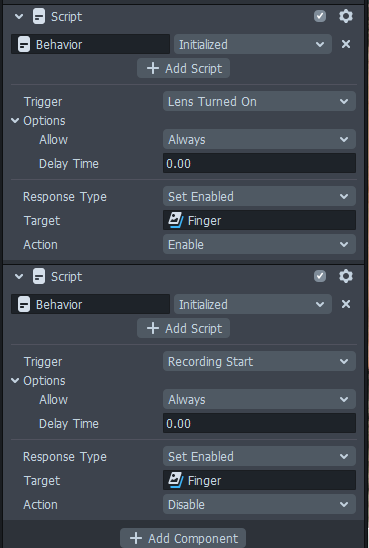
"Finger" - as the target is in replace for your instructions picture. This behavior script turns the Target on when the lens is opened, but then after you take a snap, it will not show up on their screen, same this with video. I would repeat this if you have multiple things like a picture of the square instructions, then the text, or you could just group it into one camera and put the target that camera.
Goodluck!
Darius W
Hey norimous
You also use the same method but by text if you want to have the lens clearer.
Click here for a video tutorial by mike if it helps you :D
Cheers,
SirQu3ntin