[Tutorial] How to make custom text appear for specific users

What if you wanted to send a message to someone, thank someone for using your lens, or maybe you want to get their attention. Normally you could put a screen text at the bottom of your lens so that everyone could see your message. Today I'm going to show you how to make custom text appear on your lens for unique users using User Context. If you were unable to follow along there will be a link to my website where you can download the whole project and customize your text!
Now user context has many different usages such as in Nicholas Dominici's lens to get ages or in other lenses to grab locations. Here we are going to want to grab our user's display name and show text if that display name uses the lens. Open up your resource panel and add a new script, then copy the code at the bottom of this textbox. Paste this into your script box and save it. Then click on your echopark folder to clear the inspector tab. Drag and drop your new script into the blank inspector tab and click on the script in the objects panel. (It will be named scene object x) Look back at the inspector tab and we see that there is a blank space where a Text Object would go, so let's go back to the objects panel and create a new screen text. Delete the default text that's in the screen text, click on our script in the objects panel, and drag and drop the screen text into the open Text Object slot.
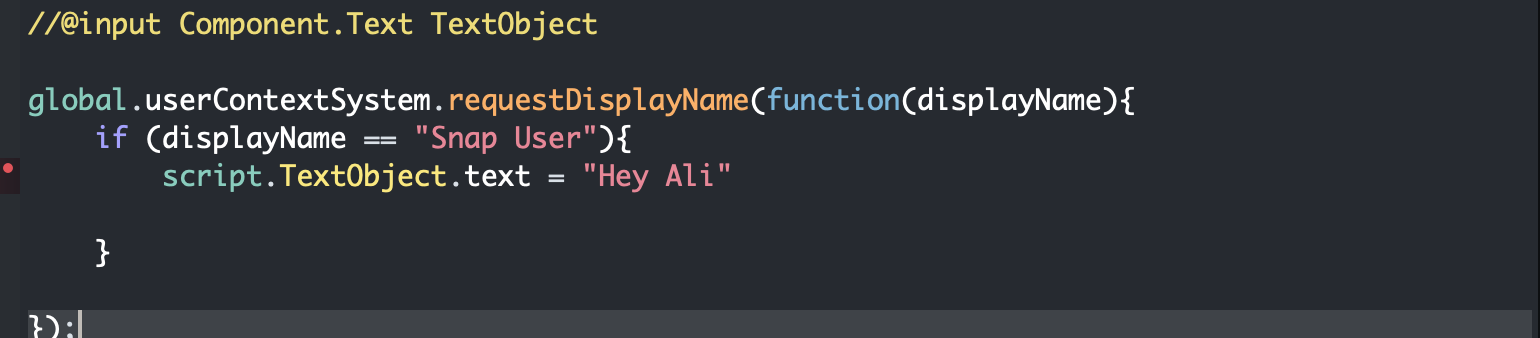
Now everything is set up. To customize your text double click on the script in the inspector tab and the script editor should pop up. Right now your preview should have the text "Your Text Here" in the center of it. If not find your mistake or download my project. If everything is working, look for the red text in the script that says "Your Text Here". Change that text to whatever you want it to say when your specific user opens it up. Once you have your text set up look for the red text that says "Snap User". Change that to the display name that you want to have this message appear to. Remember this is the DISPLAY NAME, not your user name, so the person cannot have emojis or other text in their name. For example, my username on snap is r.shields88, but my display name is Ryan Shields. If I were to put r.shields88 in the "Snap User" slot I would be unable to see the text. After your done, save the script and add any other details you would like!
My website: https://www.rshields88.com/files
The Code:
//@input Component.Text TextObject
global.userContextSystem.requestDisplayName(function(displayName){
if (displayName == "Snap User"){
script.TextObject.text = "Your Text Here!"
}
});

Thank you for this tutorial.
I will definitely use it.
Cheers,
SirQu3ntin