Lens is not visible under public profile and is not searchable

Hi there,
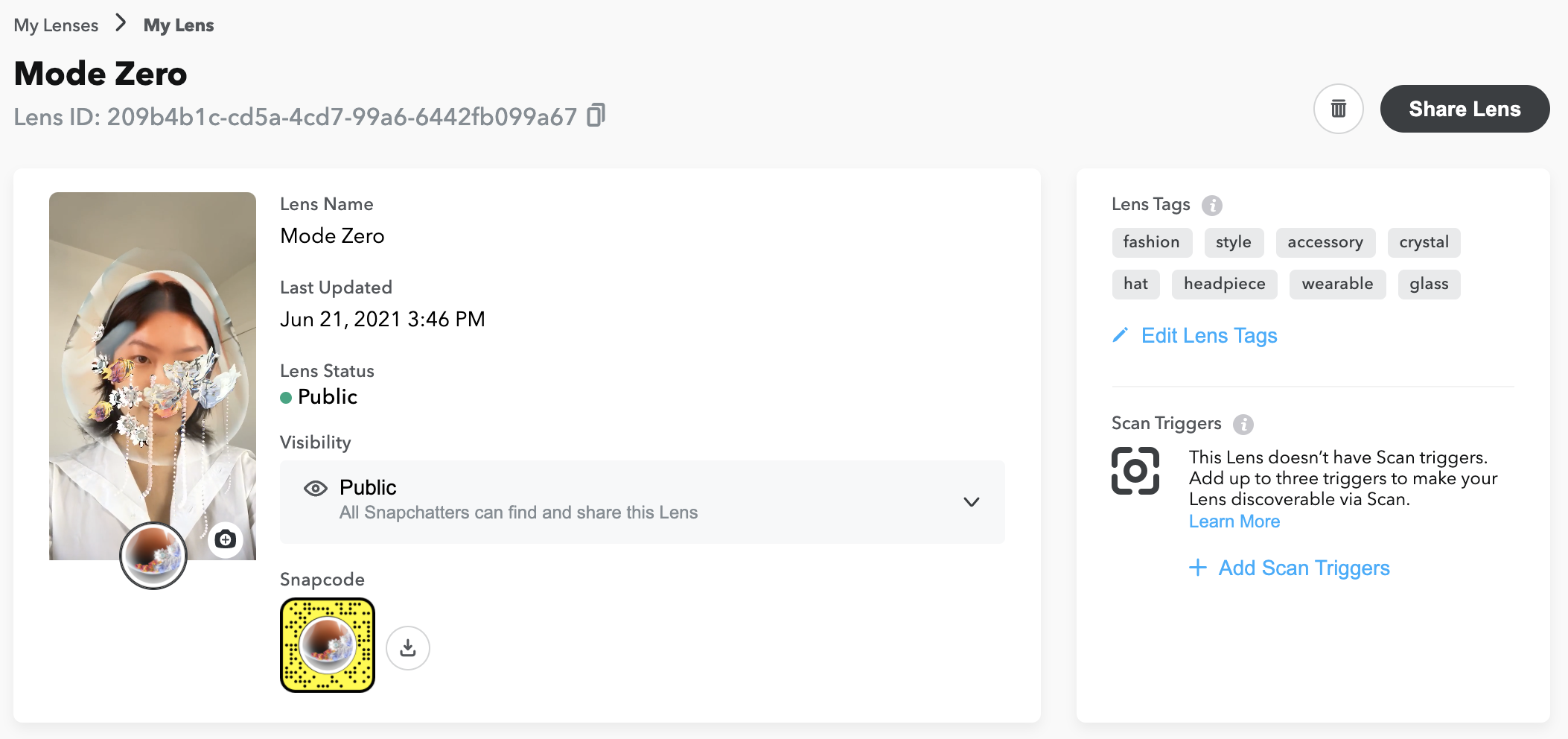
I published lens on June 21st, the status is live and can be shared via Snapcode.
However, it doesn't come up when I search for it, and it also does not appear under my public profile (helena_dong).
The other strange thing is that when it is unlocked using the Snapcode, it shows that it is 'by (null)'. It doesn't even say it is by me.
As this lens was created in collaboration with another creator, we both published the same lens under each of our accounts. His version can be found and is visible under his profile, but mine seems to have disappeared into the abyss....
Any help would be greatly appreciated!


wait for some time it happens with everyone.
abhinav1285 Is it normal for this to happen after almost 3 weeks?
The simplest solution would probably be either trying to push an update to it or just publishing it again and deleting this old broken one. Looks like a problem on Snap's end so you'd have to wait for Snap support to fix this one
@... Hi, I have the same problem, I wander how the issue resolved on your end. Thanks in advance!
VALENTINS unfortunately not! It never showed up on my account...
@... thank you. I can see in lens that it's under my profile name, but when I go "view profile" there is no lens at all there...
I have a similar problem. I published a bunch of lenses under a regular private account, then later I added a public profile to it and now all of my old lenses are gone.
Some of them are being used in a Camera Kit app and there is now nothing listed under "Lens source" for them (my name is just gone).
Google Lens lets you search for objects around you using the camera on your Google. Follow these steps to learn how to search objects using Google Lens.
Go to the Home screen. To open the menu, swipe up on the screen.
Scroll down. Choose Camera.
If this screen appears, choose an option, in this case, Deny. If this screen does not appear, go to the next step.
Choose More.
Choose Lens.
If this screen appears, choose Turn on the camera to use Lens. If this screen does not appear, skip the next step.
Choose Allow.
Point the camera at an object that you would like to search for.
Choose the magnifying glass symbol.
Choose Google Pixel Stand.
Choose Search.
If this screen appears, read the terms and conditions and choose to Accept & continue. If this screen does not appear, skip the next step.
Choose an option, in this case, No Thanks.
The search results are displayed. You are now more familiar with identifying and searching objects with Google Lens. Return to the Home screen.