Color grading tutorial lens studio. Technical art, fine art

Hi everyone,
today's tutorial is about color grading our snapchat filter, so lets do it.
Step before we start our project
Before starting you have to download a BASE LOOKUP TABLE download from link below.
https://lensstudio.snapchat.com/guides/2d/post-effect/
Export the base lookup table to lightroom
Now copy the color setting of preset you want and past to base lookup table. and save in png format
Open lens studio
Step 1
Open a new project and click on + button on objects panel > color correction > Empty

Step 2
Click on + button on resources panel > form files > select edited lookup table

Step 3
Click on empty file on objects panel, then on inspector panel select empty texture and follow step 4

Step 4
clicking on texture select your lookup table that we uploaded in step 2 and press ok
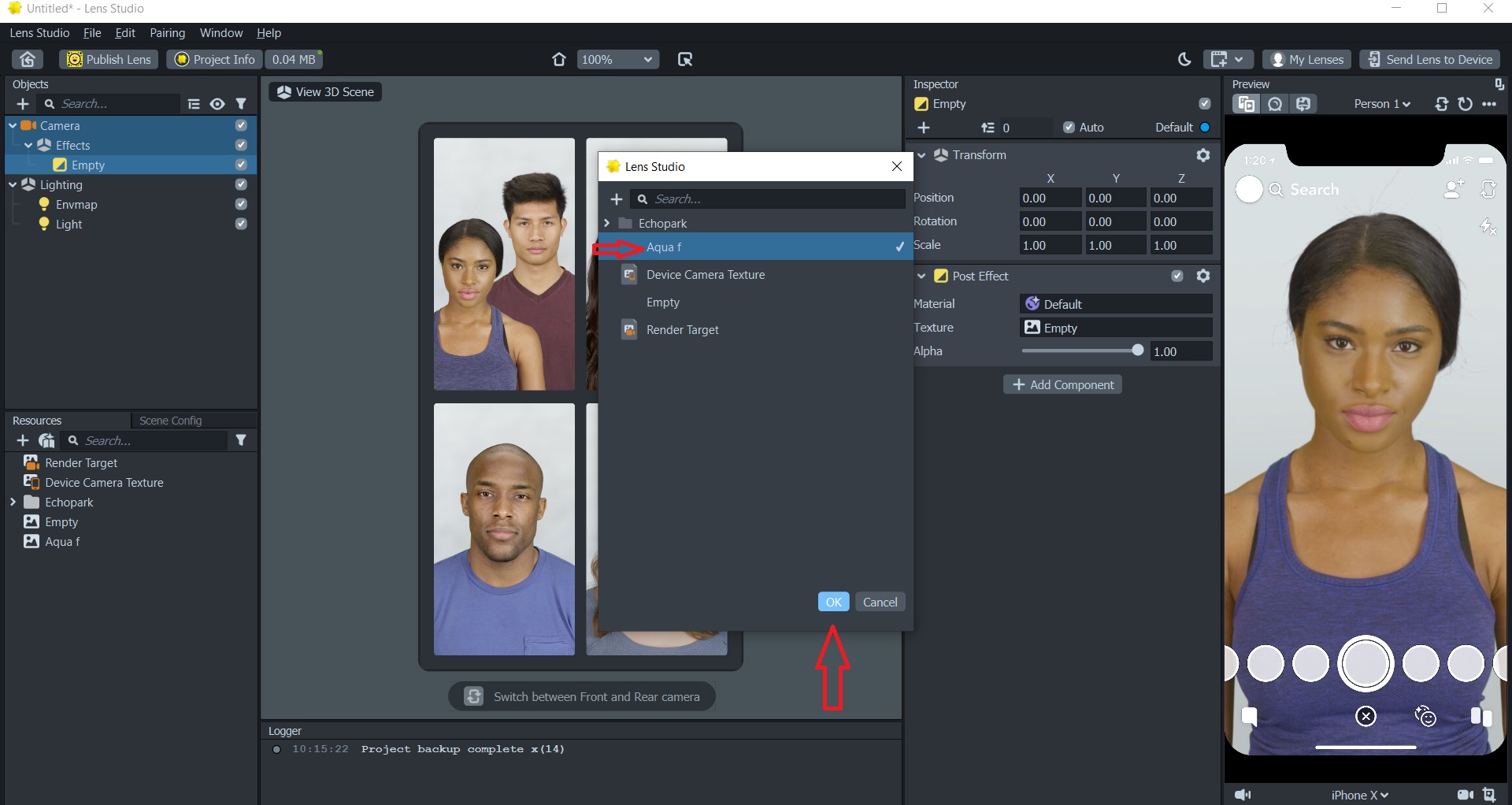
Step 5
now you will see your color grading is applied now you can adjust your effect by changing alpha
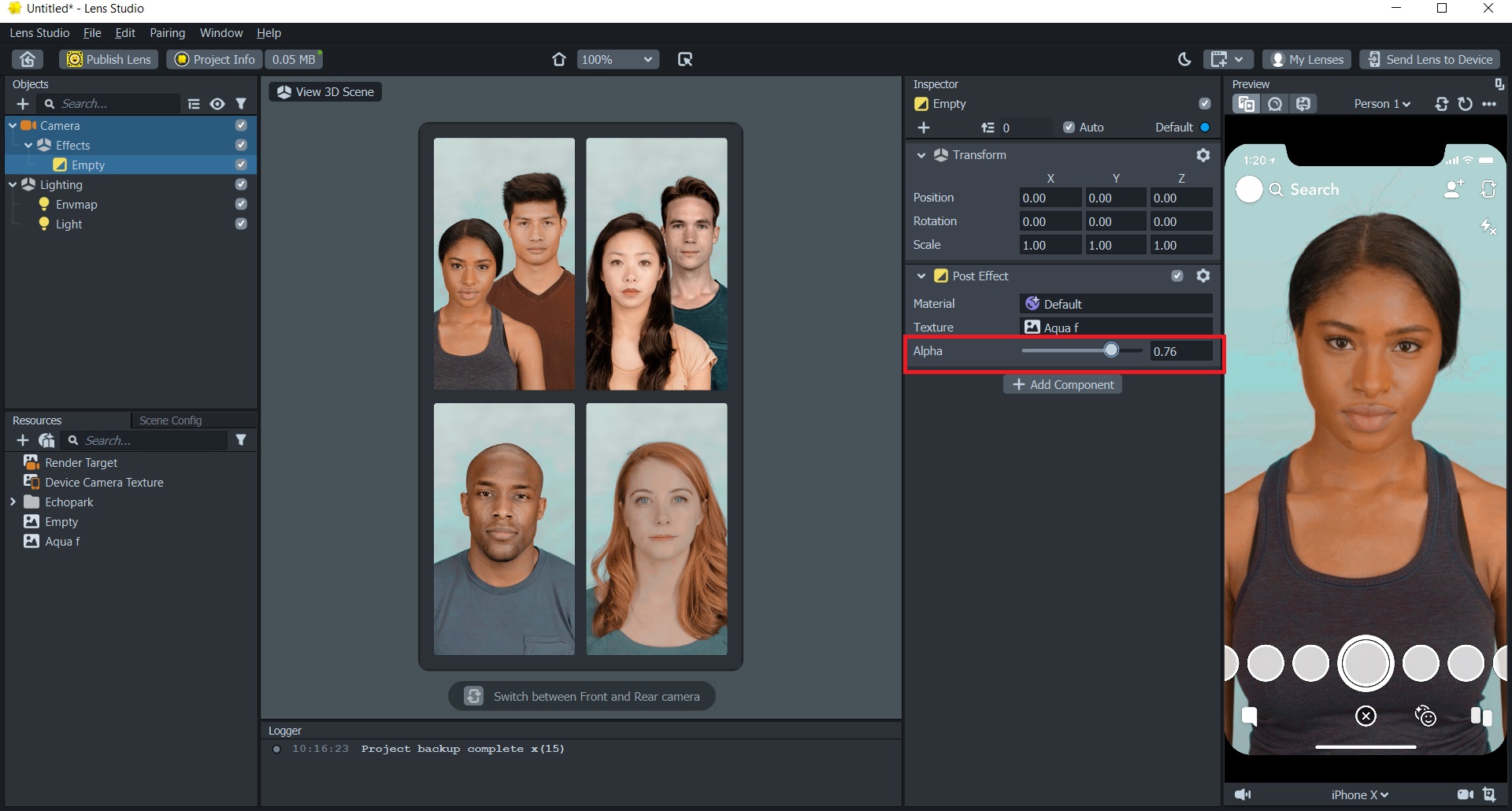
I hope you like this tutorial if you like it plz comment how is it and if you have any question you can ask in comment section
This is how the lens will look :-
https://www.snapchat.com/unlock/?type=SNAPCODE&uuid=c306055841124974bac609f1a4b811ac&metadata=01
Thank you.

If you want more tutorial than plz comment i will try my level best to make it.
Thank you for that tutorial!