The forum on this site is closed for new comments and posts. Continue the conversation in our Snap AR Discord server.

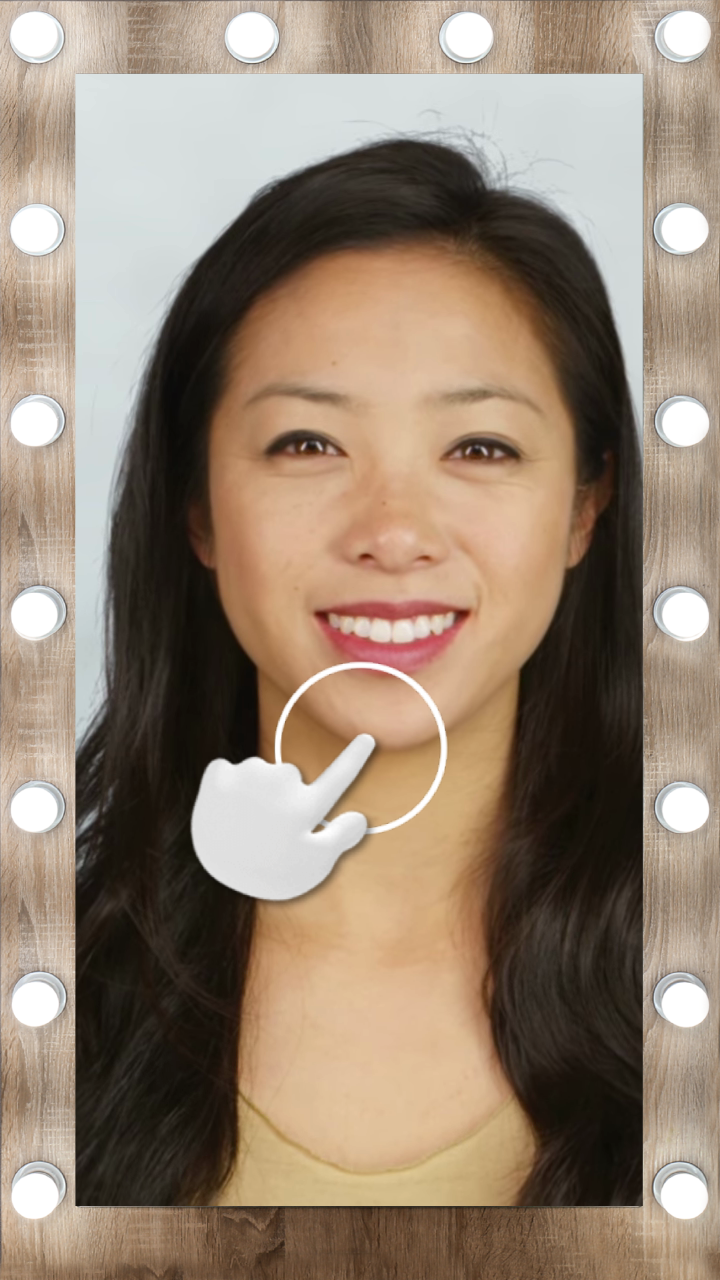
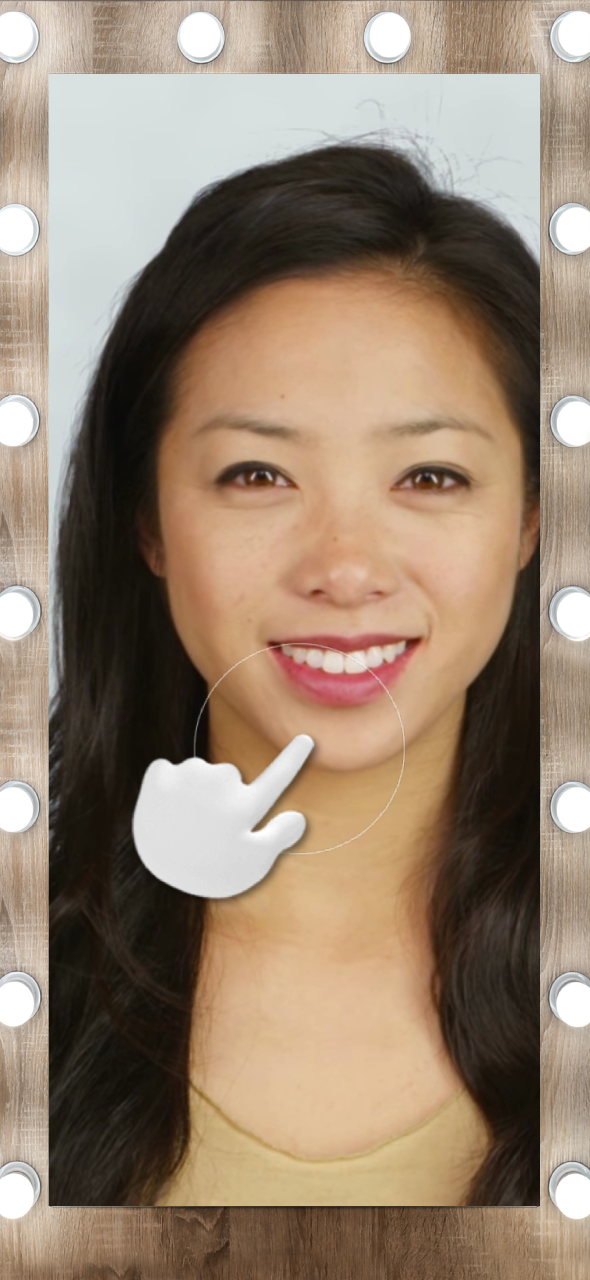
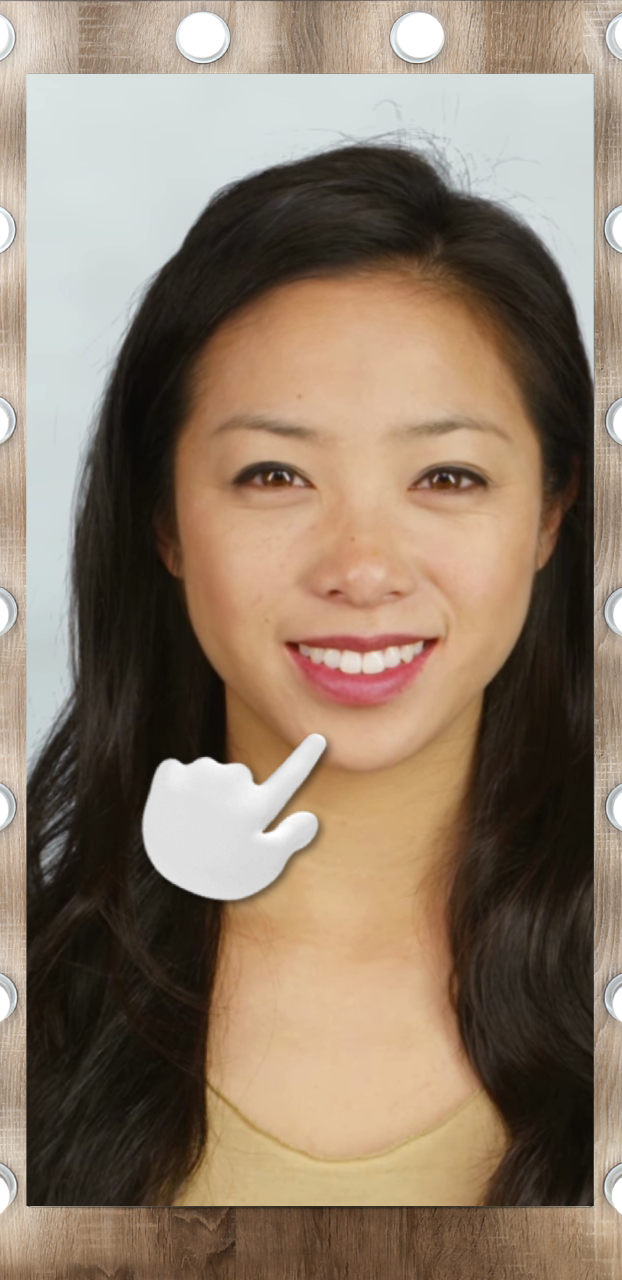
Borders on Different Device Simulation

  • Hi Jhonnel Pica,

    Thanks for reaching out! Please look out for a private email from us, we'll be in touch with some additional questions. 

    Cheers,

    Neha 


    Comment actions Permalink
  • Hi Jhonnel!

    By default screen transforms use the Full Frame Region--try using the Live region to prevent this form happening.

    Let me know if you're still have issues.

    Thank you!

    Jonathan 

    Comment actions Permalink
  • Hi, Jhonnel!

    Full Screen, Live and Capture Screen Regions are on different screens and don't match.

    What I would suggest here - use two images of frames. Set one to fit Live Screen Region 

    And have another one - just the same but with Capture screen region.

    Second one starts disabled. And then on recording started - (you can use behavior script to do this easily) disable first and enable second one

    Let me know if you need example project!

    Best 

    Olha

    Comment actions Permalink
  • Hey Olha!

    Can you make one for me please?


    Comment actions Permalink
  • Hi, Cheema!

    Here you go

    It uses behavior script to switch between frames

    Best

    Olha


    Comment actions Permalink
  • Thanks a lot Olha, You're a saviour!

    Also, I have some questions to ask where can i contact you?

    Comment actions Permalink
  • Cheema just create a new topic or follow up on a similar question and mention me!

    Best

    Olha

    Comment actions Permalink

We're here to help! We just need a little bit of information...

What system are you using?

Have you downloaded the latest version of Lens Studio?

Please download the latest version of Lens Studio. If you still run into this issue, please come back and report it!

Is this issue causing Lens Studio to crash?

What system do you run Lens Studio on?

Version

Graphics

Follow the next steps to help us solve your issue:

  • Copy and paste this text into your TerminalCommand Window
    open ~/Library/Preferences/Snap/Lens\ Studio/ %LOCALAPPDATA%\Snap\Lens Studio Copy Text
  • Press ReturnEnter to run the command. The Lens Studio folder will automatically open
  • Prepare to upload your files: zip the "Log" Folder by right-clicking and choosing "compress."
    Locate the Log.txt file right above it.

    Attach a screenshot of the issue:

Name:

Email:

What is this most relevant to?

Please enter a brief description of your issue:

Thanks for submitting this issue.

Unfortunately, it's likely due to the operating system or hardware you're using – since they don't meet the system requirements for Lens Studio.

Still, we hear you loud and clear, and are logging the issue in case there's ever a workaround we can provide!

Minimum Requirements

Operating System: Windows 10 (64 bit); MacOS 10.11+

Hardware: Minimum of Intel Core i3 2.5Ghz or AMD Phenom II 2.6Ghz with 4 GB RAM; Intel HD Graphics 4000 / Nvidia GeForce 710 / AMD Radeon HD 6450 or better; screen resolution of 1280x768 or higher

We'll try to resolve this issue as soon as possible. Thanks for letting us know about it!

Keep an eye out for a followup email from us. We may have a couple more questions for you, or we might already have a solution to offer.

Happy creating!