
We're here to help! We just need a little bit of information...
What system are you using?
Have you downloaded the latest version of Lens Studio?
Please download the latest version of Lens Studio. If you still run into this issue, please come back and report it!
Is this issue causing Lens Studio to crash?
What system do you run Lens Studio on?
Version
Graphics
Follow the next steps to help us solve your issue:
-
Copy and paste this text into your TerminalCommand Window
open ~/Library/Preferences/Snap/Lens\ Studio/ %LOCALAPPDATA%\Snap\Lens Studio Copy Text
- Press ReturnEnter to run the command. The Lens Studio folder will automatically open
-
Prepare to upload your files: zip the "Log" Folder by right-clicking and choosing "compress."Locate the Log.txt file right above it.
Attach a screenshot of the issue:
Name:
Email:
What is this most relevant to?
Please enter a brief description of your issue:
Thanks for submitting this issue.
Unfortunately, it's likely due to the operating system or hardware you're using – since they don't meet the system requirements for Lens Studio.
Still, we hear you loud and clear, and are logging the issue in case there's ever a workaround we can provide!
Minimum Requirements
Operating System: Windows 10 (64 bit); MacOS 10.11+
Hardware: Minimum of Intel Core i3 2.5Ghz or AMD Phenom II 2.6Ghz with 4 GB RAM; Intel HD Graphics 4000 / Nvidia GeForce 710 / AMD Radeon HD 6450 or better; screen resolution of 1280x768 or higher
We'll try to resolve this issue as soon as possible. Thanks for letting us know about it!
Keep an eye out for a followup email from us. We may have a couple more questions for you, or we might already have a solution to offer.
Happy creating!

Hi, Colin!
There are several ways to do this.
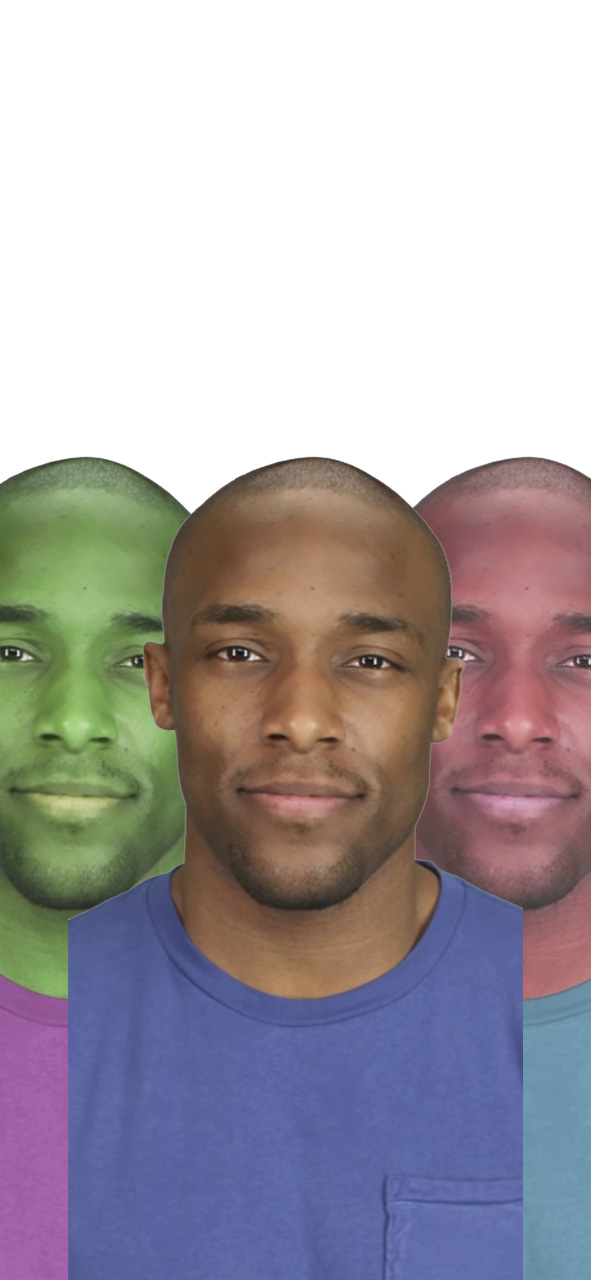
I'll describe the most straightforward one: using Segmentation texture as an opacity texture of an Unlit Material.
Starting with an empty project:
1. Add New --> Screen Image - this will create Orthographic Camera
Call Screen Image "Image Blue". Make Two copies - Image Red and Image Green. Place them on the screen as desired
2. On resources panel Create New Segmentation texture --> Portrait Background. Set "Invert" checkbox
2. On Resources panel create new Unlit Material - call it Image Blue. Configure it like this :
Set Blendmode to Normal,
Enable Opacity Texture, set it to segmentation texture
Set color to light blue
4. Assign Material Image Blue to corresponding screen Image
5. Create two copies of Blue material and set up colors. Assign them to Red and Green Images.
Example project
For more complex Effects you might need to render to different render Targets and use obtained images as diffuse or opacity mask on custom materials